
WebAssembly is a new type of code that can be run in modern web browsers and provides new features and major gains in performance. It is not primarily intended to be written by hand, rather it is designed to be an effective compilation target for low-level source languages like C, C++, Rust, etc.
MDN Web Docs, ref
Blazor lets you build interactive web UIs using C# instead of JavaScript, directly in the browser, using WebAssembly. The main benefit of using Blazor is that the development stack becomes really lean – AS (AspNetCore, SQL Server) and thus the teams become more productive.
This piqued my interest and I created a simple application called SubWeb that could generate web pages from markdown files hosted in a Github project. In this blog post, I am going to explain the learnings or observations made while creating this project.
Github: martinmthomas/subweb
SubWeb: martinmthomas/subweb
Background
Feel free to skip to the next section as this just covers the intentions behind SubWeb.
The idea of creating web pages from markdown is nothing new. A lot of companies like Microsoft generate their developer documentations from markdown files hosted in Github projects. The main driving force for using this idea in my first Blazor experiment comes from one of my recent quest to find a solution for developers to create and publish blogs for zero or low cost. Most of us have something unique from our experience to share with the community. One might be looking to publish just a couple of blogs every year and may not be concerned about making the blog look fancy. The major roadblock to achieve this is the hosting cost. Even the cheapest hosting plan (excluding DNS cost) could cost around $60 per year! This cost is justified for professional bloggers who owns multiple blogs for different purposes and need huge hosting space to store videos, images, etc. But this is not really cost efficient for someone who needs to share 2 0r 3 posts per year and does not need sophisticated plugins.
So, naturally the solution I thought of is to create a static website that could load markdown files from a Github repository. First, Github repositories are free and second, people could contribute directly to the blog via Pull Requests instead of adding comments that is going to have 3 or 4 times more content than the blog! Also, using a static website makes sense because that avoids the need for a powerful web server and thus, reduces the running costs drastically. Being a C# developer, Blazor was my first pick for the job.
Project Specs
SubWeb is created using the Preview version of .Net Core and Visual Studio 2019. The source code is maintained in Github martinmthomas/subweb project.
IDE: Visual Studio 2019 Preview
AspNetCore/Blazor: 3.0.0-preview5-19227-01
Project Type: Blazor client-side hosting
Octokit: A manual built version of Octokit is used for connecting to Github. This was done to make it .Net Standard 2.0 compatible. Modified source code is available in martinmthomas/octokit.net.
Getting Started with Blazor App
It’s been 5 years since I worked in an AspNet MVC application and hence I was a bit hesitant to use a Razor template for frontend. However, getting started with the Blazor sample application was really easy. The only thing I found confusing was that adding a new “Razor Page” creates a “.cshtml” file instead of a “.razor” file. Considering that Blazor framework’s default file extension for frontend files is “.razor”, I was not sure why there is not one available. So, I created a text file and then renamed it to “Home.razor”.
Another important change, I did manually was to create a code behind file. Again, it would have been good to have a context menu option to create a code behind file for a razor template. Anyway, creating code behind file is easy,
- Create a C# class (Home.cs) and inherit from
ComponentBase(Microsoft.AspNetCore.Components) - Add logic that needs to be run when the page loads first time in the
OnInit/OnInitAsyncmethod. - In the razor page, inherit from the C# class.
@inherits Home
Routing
Blazor comes with a Router component and is used in App.razor page (startup page). This component scans through the AppAssembly to find all the razor pages and creates a route table. Each razor page could define one or more route it wants to associate with using the page attribute. For example, below route in Home.razor indicates that all the requests to the root path must be directed to Home.razor page.
@page "/"
Router component right now does not support complex requirements. For example, wild card support in defining routes are not allowed. This was particularly concerning for me because SubWeb has just one razor page, Home.razor. SubWeb expects Url to be in a specific format, which is,
https://subweb.azurewebsites.net/{githubRepo}/{githubProject}/{filePath:optional}
Irrespective of the Url parameters, all the requests must be directed to Home page so that it can find out the project details and load the markdown files. Without the wild card support the only option was to set FallbackComponent on Router as the Home component. This works for SubWeb because the “Page Not Found” scenario is handled with in the Home page. But this will not be the case for everyone who wants to build SPAs. We have to see how AspNetCore team prioritizes this.
Async/Await
ComponentBase class provides both Async and non-Async version of its virtual methods to handle the life cycle events. It made sense to use Async methods as for all the events overridden in SubWeb, there is going to be an Api call made to Github. For a client-side app this is the equivalent of RxJs Promises, except for the functional programming style one would use with the Promises.
One issue I faced, due to my oversight, was a classic deadlock by mixing up synchronous and asynchronous code, and it took me couple of days to figure it out. While creating an event handler for OnLocationChanged event of UriHelper, I used Visual Studio’s context option to auto create the handler for me. It created a synchronous method as event handler and all of my existing code were already async. Without realizing this basic mistake, I used the Result property in the hope that I could load the home page. But this resulted in a context deadlock. To know more about this issue, see Stephen Cleary’s post “Don’t Block on Async code“. The fix is not to mix async with non-async code. So, I changed the event handler method to async.
private async void UriHelper_OnLocationChanged(object sender, string e)
StateHasChanged()
Components provide two way property binding and this works fine as long as the properties are updated as part of the component events. When Url changes and the event handler is triggered, application gets and converts the markdown file to web page, and also sets the ConvHtml property so that the content will be displayed. However, the Home component has no way of knowing that the property has been updated because OnLocationChanged event is part of UriHelper service. To let the component know in such a situation that it’s state has changed, ComponentBase provides a method called StateHasChanged(). Invoke this method once the component is updated to re-render it.
Debugging
This is probably the only thing that I was not satisfied with the preview version of Blazor because I could not make the debugger working. Once I open Chrome with remote debugging enabled, when I access the application, developer tools complains that “WebSocket Disconnected”. At the moment, I could not figure out a way to work around this. I am assuming that this is just an issue with the preview release.
Static Hosting
As SubWeb uses Blazor’s client-side hosting model, I was keen to find out if I can host this in Azure Blob storage as a static website. Short answer is yes, it works! There are no magic steps required. Simply enable static website hosting in Azure Storage account and then upload the published files from your local folder to $web container. You are ready to use your Blazor application containing C# and .Net without requiring a Web Server!
However, the static hosting model does not do justice to the mono.wasm asset in the published files. You could see following error in the browser console.

What this means is that Azure is serving the mono.wasm file as an octet-stream and not as a wasm. This issue contributes to an already somewhat slow loading. The difference in performance is obvious when you switch to Azure AppService where the loading takes ~6 seconds lesser time.
Performance
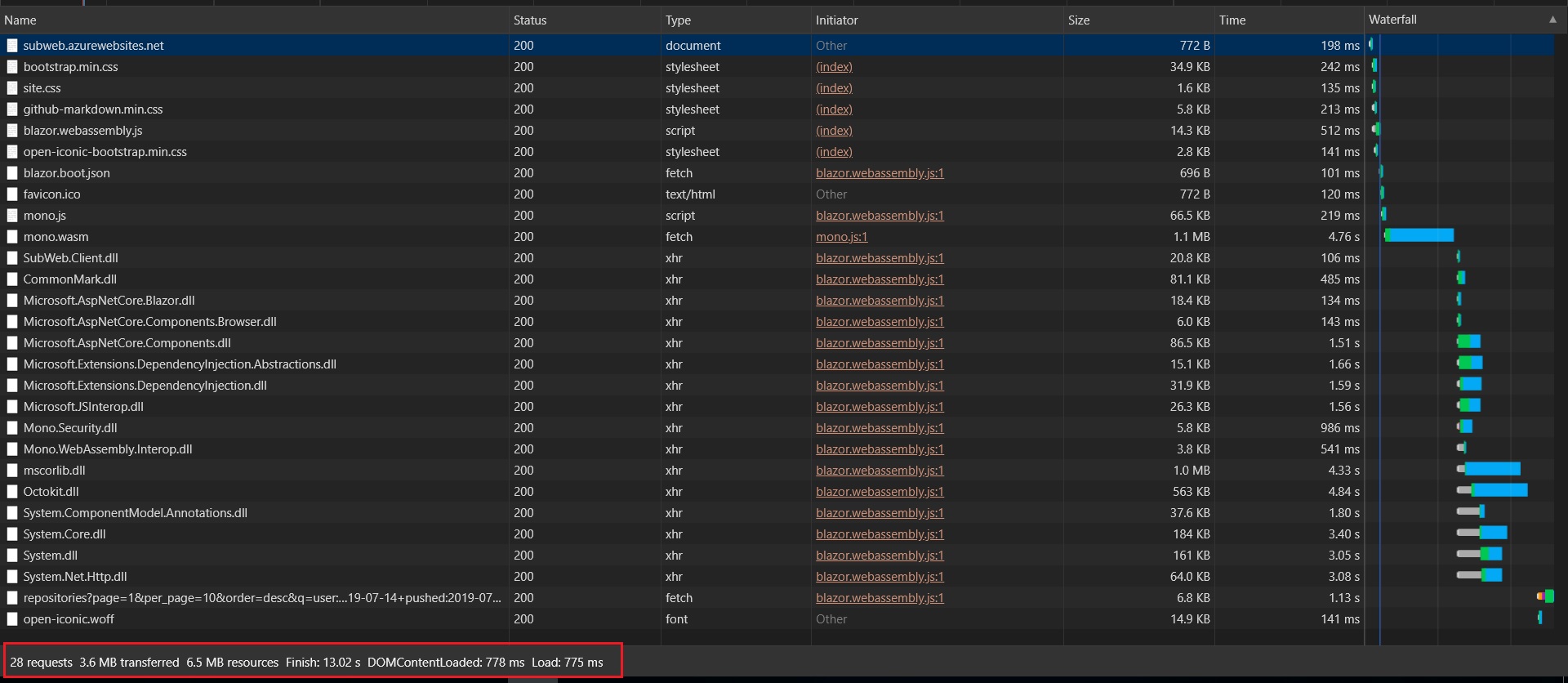
As mentioned before, the first time loading performance is not good and it is worse when using Azure Static hosting (hopefully the content type issue will be fixed by the Azure team). The main reason is that there are too many system files and some of them are heavy too, resulting in consuming too much bandwidth for a simple application like this. Scott Hanselman in one of his MSBuild talks kind of touched upon the solution for this problem – Tree Shaking. Unlike in JavaScript ES6, where we declare the required features of a module using import keyword, this is really going to be tricky in C# where we do not express the intent and therefore, I do not think a fix will be available any time soon. More details about Tree Shaking is available here.
Summary
Blazor is definitely a game changer in the web development space because it is going to reduce the learning curve required in creating simple to enterprise grade web applications. But it is only in Preview and there is a lot to be done before it could be adopted in production ready applications. Routing, page load performance, static hosting issues, etc. require some attention. We are only a few months away from the first official release. Hopefully, some of these issues, if not all, will be addressed in it.
 Martin's Blog